VoidLAB operator manual
Read the illustrated operator handbook for the current VoidLAB release: workspace anatomy, unified console behavior, inline stdin flow, tool pages, commands, and deploy-ready habits.
VoidLAB Operator Handbook
VoidLAB is a modern browser-based coding workspace built around an editor, a multi-file project model, a unified execution console, and focused tool pages for publishing, collaboration, AI guidance, and profile management.
1.Sign in, land in the editor, and confirm the active file in the workspace header.
2.Create files or folders from the explorer, or import an existing set into the local workspace.
3.Pick the active language from the top bar, write code, then use Run or Preview.
4.Use the unified console to inspect stdout, stderr, compile output, runtime status, and workspace commands.
5.Open the tool pages when you need GitHub publishing, collaboration, AI help, profile edits, or this handbook.
Workspace map
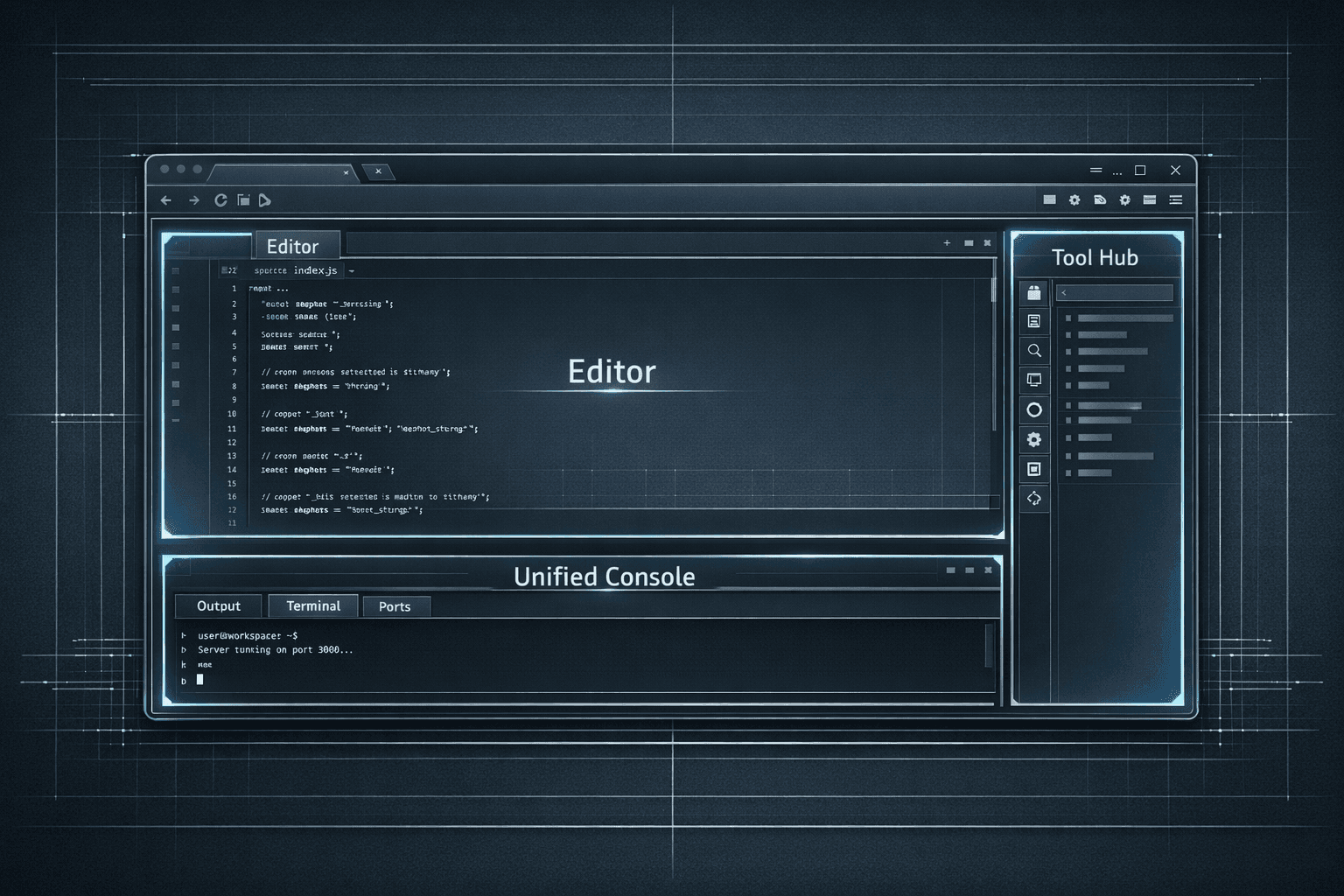
Editor: write and switch files with language-aware Monaco editing.
Unified Console: one execution surface for output, workspace terminal commands, and future ports.
Tool Hub: dedicated routes for the manual, GitHub, collaboration, AI guide, and profile.
Files are tracked inside a local workspace model, not a native filesystem shell.
Folders, file paths, and terminal history persist across sessions in the browser state.
The active file drives language selection, preview behavior, and GitHub publish targeting.
Interactive execution flow
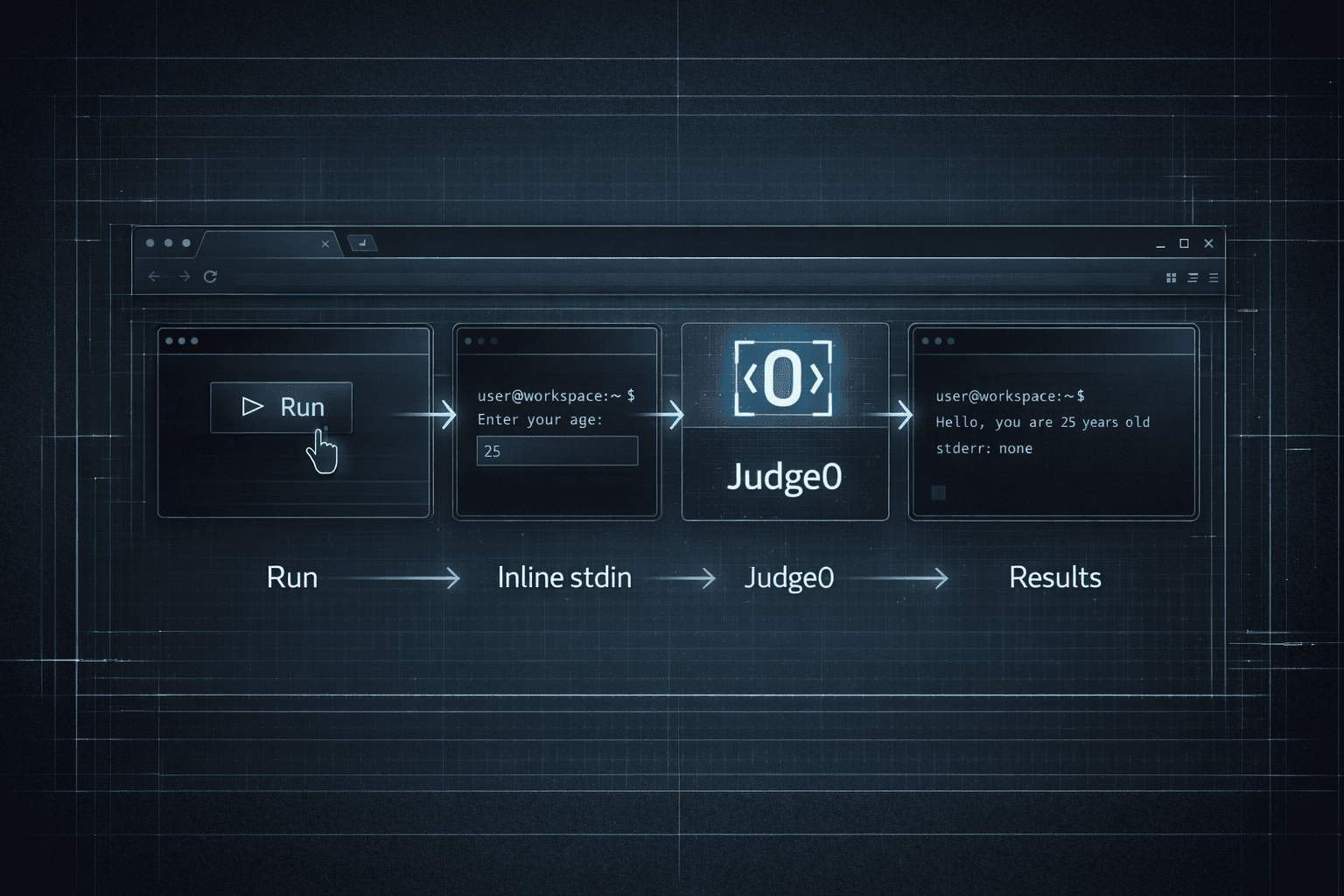
Unified console behavior
ls,tree, touch, open, and rm.Workspace command sheet
helppwdls [path]tree [path]cd <path>mkdir <path>touch <path>open <path>cat <path>rm <path>clearTool hub reference
Profile and theme notes
Display picture uploads are optional. Leaving the avatar empty is a valid clean state and does not block profile saves.
The off-white theme (Fade white) is the default, designed for higher contrast with a refined cherry-red accent.
The rich black theme pairs a deep dark background with vivid red highlights for an immersive coding experience.
Workspace data, terminal history, and profile-side activity are stored locally in the browser experience unless synced through dedicated flows such as collaboration or GitHub publishing.
Deploy-ready habits
1.Confirm the active file and language before running or exporting.
2.Use Preview for browser-native documents such as HTML, CSS, Markdown, JSON, or XML when applicable.
3.If a program needs input, let VoidLAB collect stdin inline in Output before execution rather than using a detached input box.
4.Review stdout, stderr, compile output, memory, time, and exit metadata in the Output tab after each run.
5.Push a clean result to GitHub from the publish page once the file and branch target are correct.